Key takeaways
- Factory-calibrated with tight sRGB accuracy out of the box
- 27-inch QHD resolution suits multitasking and vector work
- No USB-C port for simplified laptop connections
A graphic designer staring at a monitor that renders brand colors off by ten points has a serious problem on their hands. Whether you are retouching product photography, building layouts for print, or color-grading a client video, the display you work on is the single most consequential piece of equipment in your setup—more consequential than your GPU, your CPU, and certainly more than your keyboard. Yet the market is flooded with panels marketed toward gamers that promise refresh rates nobody needs for static design work, while the actual color-accurate options range from under a hundred dollars to well over a thousand.
We compared every monitor in this roundup against three things: published factory color-accuracy data, panel specifications relevant to design workflows, and recurring patterns in long-term owner feedback. The best monitors for graphic design work in this list share one trait—calibrated accuracy at factory—while the weaker options rely on software correction or simply lack the hardware to hold color across a wide viewing angle. Below, we rank each pick so you can match your budget and workflow to the right panel.
Our top picks






As an Amazon Associate we earn from qualifying purchases at no extra cost to you.
Quick Picks
| Product | Best for | Price |
|---|---|---|
| ASUS ProArt PA278QV | Best overall for most designers | $223 |
| Philips 241V8LB | Ultra-budget starting point | $74.99 |
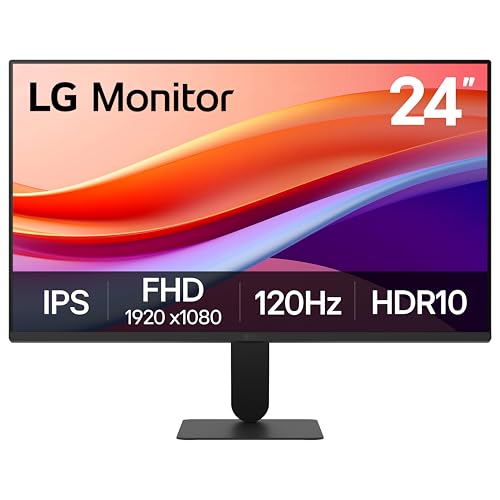
| LG 24U411A-B | Budget IPS with HDR10 support | $89.99 |
| ASUS ProArt PA247CV | Compact USB-C professional use | $169 |
| Acer Nitro KG271 X1biip | Large-screen value on a tight budget | $109.99 |
| ASUS ProArt PA248QV | Text-heavy layout and UI design | $199 |
| ASUS ProArt PA278CV | USB-C and QHD in one package | $229 |
| KTC H24S17P | Curved high-refresh on a budget | $118.99 |
How We Picked
We narrowed this category to monitors that meet a minimum bar on three criteria. First, factory color accuracy or a documented color-space target of at least sRGB coverage close to full, because post-purchase calibration cannot fix a panel that never hit the marks. Second, IPS panel technology with wide viewing angles, since design work frequently involves checking color consistency across a large canvas. Third, build quality and ergonomics that support multi-hour sessions. Price-to-spec value was the tiebreaker at every tier.
The 8 Best Monitors For Graphic Design Work in 2026
ASUS ProArt PA278QV
This is the panel we would hand to a freelance designer who needs reliable color without spending four figures. The 27-inch 1440p resolution gives you real screen estate for layout work, and the factory-calibrated sRGB coverage means files leave your screen looking correct on other displays. Owners consistently praise the build quality and the included color presets for print and web workflows. The USB-C absence is the most commonly noted limitation, so if you need single-cable laptop docking, look further down this list. Skip it if your primary work involves HDR video grading or wide-gamut print.
- Factory-calibrated with tight sRGB accuracy out of the box
- 27-inch QHD resolution suits multitasking and vector work
- No USB-C port for simplified laptop connections
Philips 241V8LB
At just under seventy-five dollars, this is the cheapest entry into a dedicated design display, and it is genuinely usable. The VA panel and 1080p resolution limit color uniformity and canvas space, but for a student or someone setting up a secondary reference monitor, it removes the excuse of working on a laptop screen. The 100Hz refresh makes scroll-heavy design reviews smoother than typical budget panels. Owners note the stand is basic and the viewing angles are narrower than IPS. Skip it if you do color-critical work or need more than a small working area.
- Extremely low price lowers the barrier to a dedicated display
- 100Hz refresh reduces scroll stutter on a budget panel
- VA panel narrows viewing angles and risks color shift off-center
LG 24U411A-B
For roughly ninety dollars, this monitor delivers an IPS panel with HDR10 support and a 120Hz refresh rate—a combination that is unusual at this price tier. The Full HD resolution is adequate for a 24-inch panel where text remains crisp. Owners highlight the slim stand and flicker-free backlighting as comfort features for long sessions. The main trade-off is that HDR10 without high peak brightness is more of a spec-sheet item than a practical advantage for design. Skip it if you need higher resolution or wide-gamut coverage beyond sRGB.
- IPS panel with 120Hz refresh and HDR10 at a budget price
- Reader Mode and Flicker Safe reduce eye strain over long sessions
- HDR10 implementation is nominal rather than genuinely high-brightness
ASUS ProArt PA247CV
The smallest ProArt in this group earns its place with USB-C connectivity, which means a single cable handles video signal, data, and laptop charging simultaneously. The 24-inch 1080p panel is factory-calibrated and targets sRGB with strong accuracy. Owners appreciate the compact footprint for desk-constrained setups and the color presets built into the OSD. The resolution is the limiting factor here; at 24 inches you get less canvas than the PA278QV. Skip it if your layouts or spreadsheets demand more pixels.
- USB-C with power delivery simplifies cable management
- Factory calibration with ProArt color accuracy standards
- 1080p at 24 inches limits workspace density for complex layouts
Acer Nitro KG271 X1biip
A 27-inch IPS panel with a 200Hz refresh rate at under $110 is unusual, and this gaming monitor finds a niche in design studios that run secondary reference displays or mood-board monitors. The resolution is 1080p across 27 inches, so pixel density is low—text and fine vectors can appear soft. Owners report adequate color for non-critical work, but it is not factory-calibrated for accuracy. Skip it if you do any color-critical grading, print prepress, or client-facing brand work.
- 27-inch IPS at a price lower than most 24-inch professional panels
- 200Hz refresh makes viewport navigation feel fluid
- Low pixel density and no factory color calibration limit design use
ASUS ProArt PA248QV
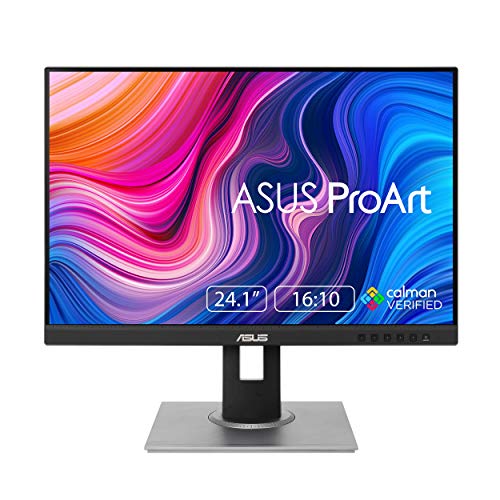
The 16:10 WUXGA aspect ratio is the defining feature of this monitor, giving you a taller canvas that is genuinely useful for UI design, document layout, and code-adjacent creative work. The 24-inch panel is factory-calibrated and targets 100% sRGB. Owners note the taller screen eliminates the need to scroll as frequently during vertical layout work. The trade-off is a smaller horizontal workspace than the 27-inch ProArt options. Skip it if your primary task involves wide spreadsheets or panoramic photography review.
- 16:10 aspect ratio provides extra vertical space for layout and UI work
- Factory-calibrated with full sRGB coverage
- Narrower horizontal canvas compared to 16:9 alternatives at similar price
ASUS ProArt PA278CV
This monitor combines the 27-inch QHD canvas with USB-C power delivery, which is the configuration most working designers ask for when budget allows. Factory calibration and sRGB coverage match the PA278QV, so you are paying a small premium for the connectivity upgrade rather than a panel change. Owners highlight the single-cable setup as a productivity win on laptop-heavy desks. The price sits at the top of this list. Skip it if you do not need USB-C and want to save a few dollars with the PA278QV instead.
- QHD resolution on 27 inches with factory color accuracy
- USB-C with power delivery reduces desk clutter to one cable
- Higher price than the PA278QV without a panel improvement
KTC H24S17P
A 1500R curved VA panel at 240Hz for under $120 is a spec list that reads more like a gaming ad, and that is exactly what this is. The 3000:1 contrast ratio is strong for a VA panel, which can help when reviewing dark-themed layouts or photo shadows. Owners note the curve wraps the image around peripheral vision, which some find immersive and others find distracting for precise alignment work. No factory calibration is listed. Skip it if you need flat geometry for vector design or color-critical output.
- 240Hz refresh and deep contrast make it engaging at a low price
- Curved 1500R panel reduces edge distortion across the viewing field
- No factory color calibration and VA panel risks color inconsistency
Buying Guide
Panel Type and Color Uniformity
For design work, IPS remains the default choice because its viewing angles prevent the color shift that a VA or TN panel produces when you glance at the edges of your canvas. VA panels offer higher contrast, which can be genuinely useful for shadow-heavy photography, but the uniformity penalty makes them a risk for anything requiring consistent color across the entire screen. TN panels should be avoided entirely for this use case.
Resolution and Pixel Density
A 27-inch QHD display delivers roughly 110 pixels per inch, which is the sweet spot where text remains crisp without requiring scaling in most operating systems. A 24-inch 1080p panel sits near 92 ppi, which is acceptable but noticeably softer for vector edges and small type. If your budget stretches to 27 inches, prioritize QHD over a larger FHD panel—screen size without resolution density is a false economy for precision work.
Factory Calibration vs. Software Correction
A monitor that ships with a printed calibration report or is certified by a color standard has hardware and panel binning selected to hit accurate values out of the box. Software LUT correction applied after purchase can improve a mediocre panel, but it compresses your tonal range and cannot fix a panel whose native color gamut misses the targets. When the price difference between a factory-calibrated ProArt and a generic panel is under one hundred dollars, the calibration is worth paying for.
Our Verdict
Our top pick is the ASUS ProArt PA278QV, which balances factory color accuracy, 27-inch QHD resolution, and a price that keeps it accessible to freelance designers and small studios alike. For the budget tier, the LG 24U411A-B is the standout under ninety dollars, offering an IPS panel and features that cost more elsewhere. If USB-C single-cable workflows matter more to you than saving a small amount, the PA278CV wins by adding that connectivity to an equally calibrated panel without changing the core design value.
FAQ
Is 1080p enough for graphic design work?
It is workable on a 24-inch panel, but you will feel the constraints of limited canvas space and softer vector edges during detailed layout work. On a 27-inch screen, 1080p is noticeably sparse and pixel density drops below comfortable levels for reading small type.
Do I need a wide-gamut monitor like DCI-P3 for graphic design?
For most print and web design, full sRGB coverage is the practical target because that is the color space most clients and output methods operate in. DCI-P3 matters more for motion graphics and HDR video than for static brand design.
Does a higher refresh rate help design work?
It makes cursor movement, panning, and zooming feel smoother, which reduces fatigue during long sessions, but it does not improve color accuracy or resolution. Treat it as a comfort feature, not a design specification.
Is USB-C necessary on a design monitor?
It is not necessary, but it is genuinely convenient for laptop users because a single cable handles video, data, and power. If you connect via DisplayPort or HDMI with a separate charger anyway, you lose nothing functionally by skipping it.